Accessing Privacy Settings
To open your privacy settings:
- Tap You in the bottom navigation bar
- Tap Privacy
Privacy settings are configured independently for each zone. Make sure you are in the zone you want to configure before making changes.
Visibility Controls
Control who can see your personal information. Each setting has four options: Everyone, My Zone, My Contacts, or Only me.
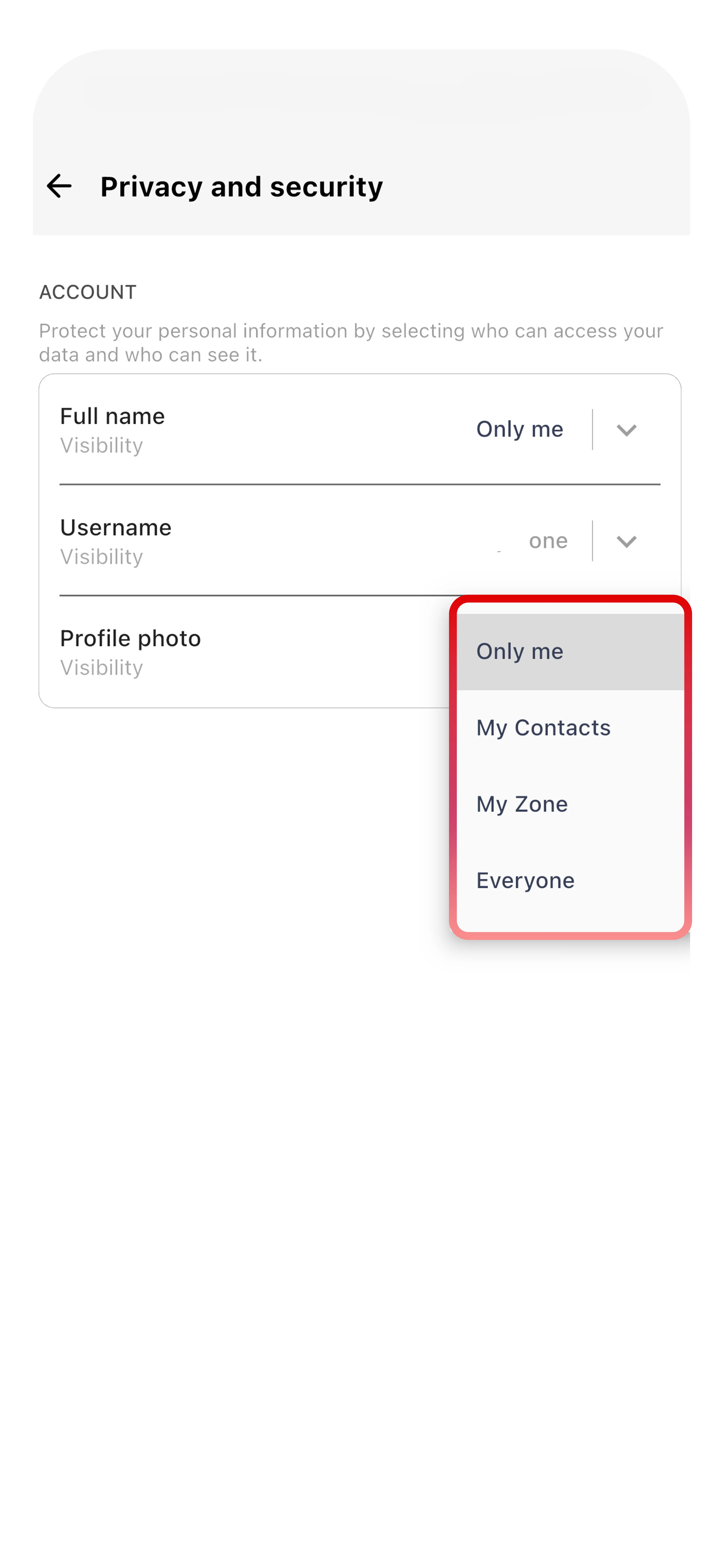
Who Can See Your Name
| Setting | Who sees your display name |
|---|---|
| Everyone | All Tr3sPass users can see your name |
| My Zone | Only users in the same zone can see your name |
| My Contacts | Only people in your contact list |
| Only me | Your name is hidden from everyone |
Who Can See Your Status
Controls visibility of your custom status message (the text beneath your name).
| Setting | Who sees your status |
|---|---|
| Everyone | All Tr3sPass users |
| My Zone | Only users in the same zone can see your status |
| My Contacts | Only your contacts |
| Only me | Status hidden from everyone |
Who Can See Your ZTRS Score
Your Zero Trust Risk Score indicates your identity verification level. You can control who sees it.
| Setting | Who sees your ZTRS |
|---|---|
| Everyone | Visible to all users who view your profile |
| My Zone | Only users in the same zone can see your score |
| My Contacts | Only your contacts can see your score |
| Only me | ZTRS score hidden from everyone |
Note: Even when hidden, your ZTRS still affects how you appear in the TripleCyber ecosystem (zone level indicators remain visible).
Read Receipts
Read receipts tell senders when you have read their messages.
- Blue closed eye — Message sent

- Red open eye — Message delivered to your device

- Blue open eye — Message read

To disable read receipts:
- Go to You → Privacy
- Toggle Read Receipts off
When you disable read receipts, you also cannot see read receipts from others. This setting applies to one-on-one chats only — group chat read receipts are always on.
Last Seen
Last Seen shows when you were last active on Tr3sPass.
Options:
| Setting | What others see |
|---|---|
| Everyone | All users can see your last active time |
| My Zone | Only users in the same zone can see it |
| My Contacts | Only your contacts see it |
| Only me | Last Seen is hidden from everyone |
When you hide your Last Seen, you also cannot see other users' Last Seen status.
Profile Photo
Control who can see your profile picture.
| Setting | Who sees your photo |
|---|---|
| Everyone | All Tr3sPass users |
| My Zone | Only users in the same zone can see your photo |
| My Contacts | Only your contacts |
| Only me | Default placeholder shown to everyone |
Blocked Contacts
Blocking a contact prevents them from:
- Sending you messages or calling you
- Seeing your Last Seen, status, or profile photo updates
- Seeing changes to your ZTRS score
- Adding you to group chats
To block a contact:
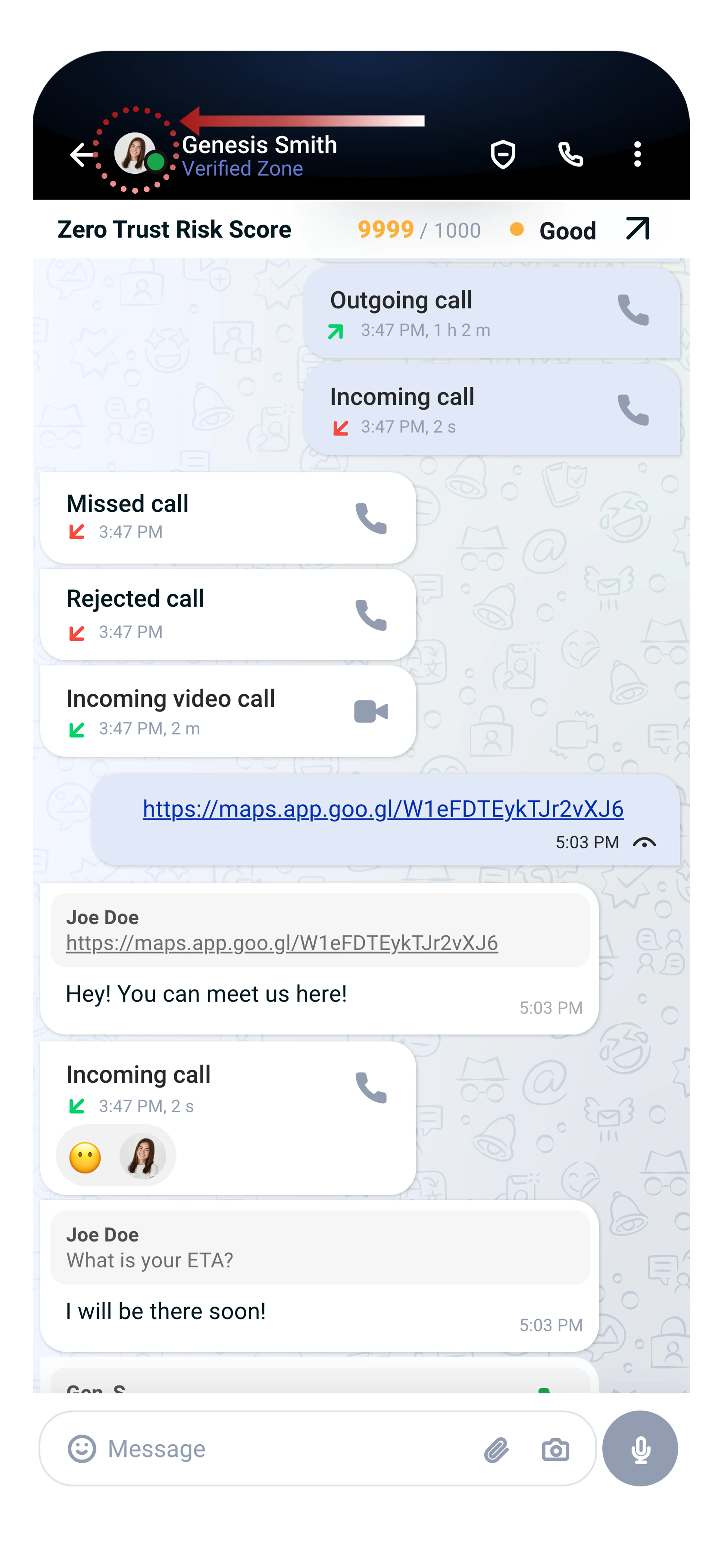
Open the conversation, then tap the contact's name at the top.
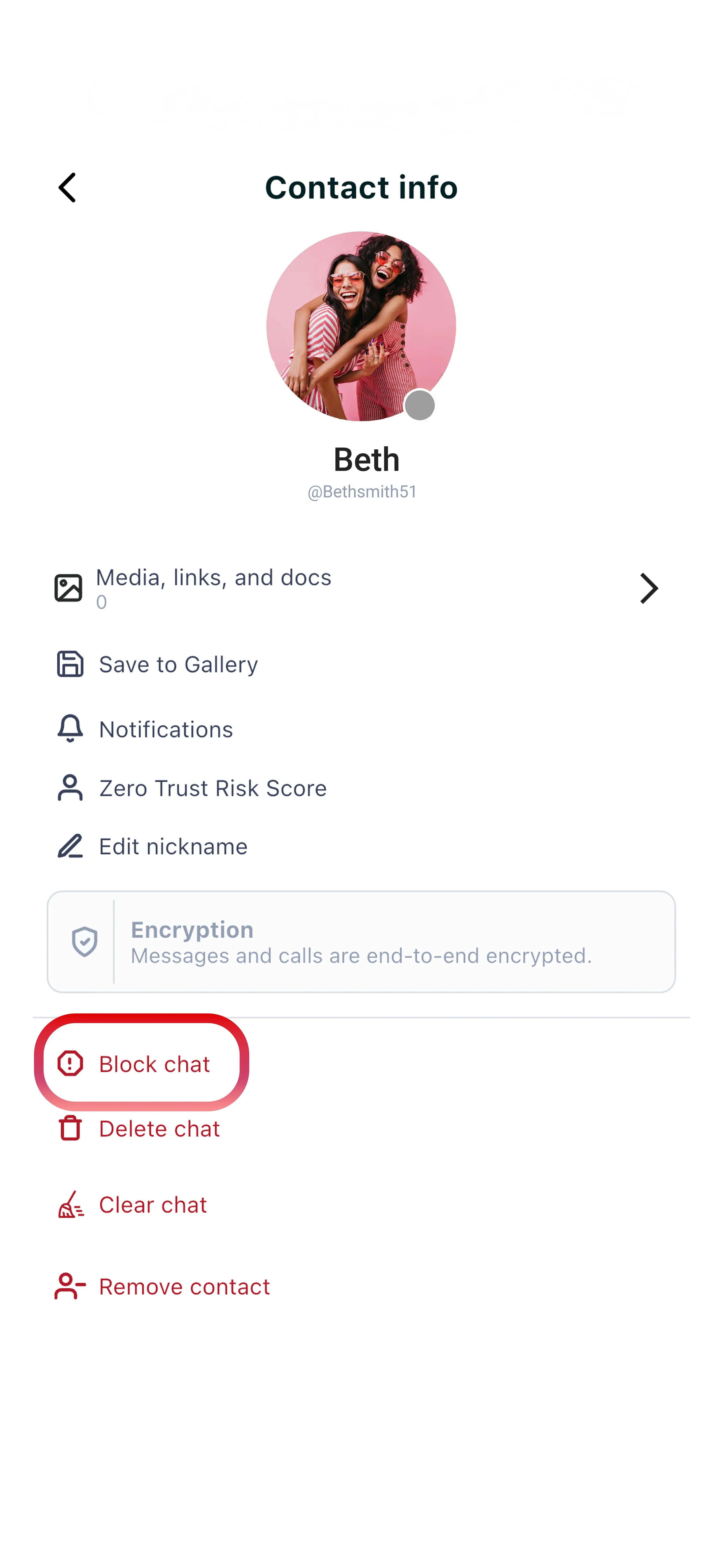
Scroll down and tap Block chat.
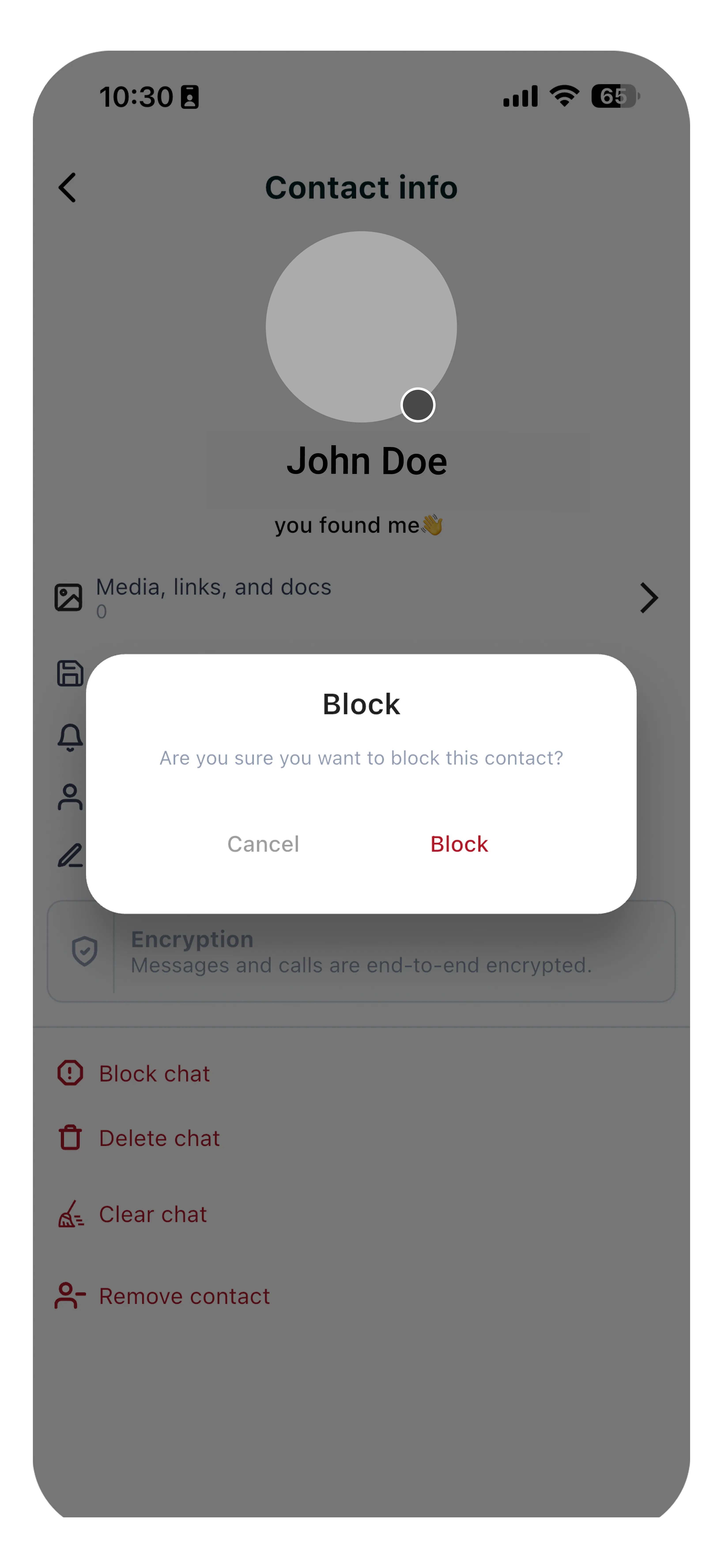
Confirm by tapping Block.
To unblock a contact:
- Go to You → Blocked contacts
- Find the contact in the list
- Tap Unblock
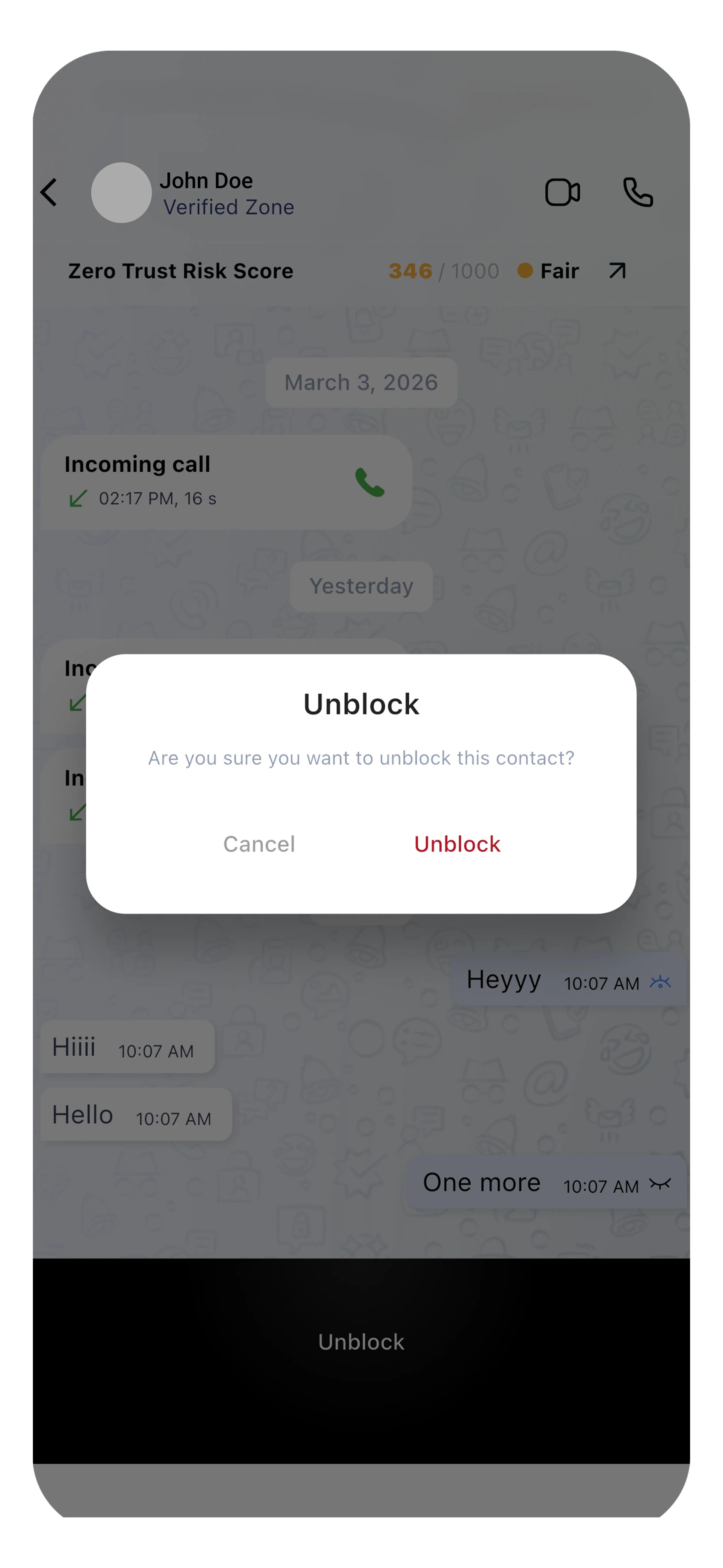
Blocked contacts are not notified that they have been blocked. Your existing conversations remain in your chat list but no new messages can be sent or received.
Locked Contacts
Locked Contacts adds an extra layer of security by password-protecting specific conversations.
To lock a conversation:
- Long press on a conversation in your Chats list
- Tap Lock Chat
- Set a PIN or use biometric authentication (Face ID / fingerprint)
Locked conversations are hidden from the main chat list and can only be accessed by entering your PIN or using biometrics. This is useful for protecting sensitive conversations on shared devices.
TripleValidate Sync
Privacy settings in Tr3sPass sync with TripleValidate. This means:
- If you set your name visibility to "Only me" in Tr3sPass, your name will not appear in TripleValidate search results
- If you hide your ZTRS score, it will also be hidden when others validate your identity
- Blocked contacts in Tr3sPass cannot validate your identity through TripleValidate
Important: Changes to privacy settings may take a few minutes to sync across the TripleCyber ecosystem.
Zone-Specific Privacy
Each zone (Anonymous, Verified, Secure) maintains independent privacy settings. For example:
- Your Anonymous zone can have name visibility set to "Only me"
- Your Verified zone can have name visibility set to "My Contacts"
- Your Secure zone can have name visibility set to "Everyone"
To configure privacy for a specific zone, switch to that zone using the Switch button in the You tab before opening Privacy settings.
Groups
Additional privacy controls for group conversations:
- Who can add me to groups: Everyone, My Zone, My Contacts, or Only me
- When set to "Only me," users must send you an invitation that you can accept or decline
Summary
| Setting | Options | Default |
|---|---|---|
| Name visibility | Everyone / My Zone / My Contacts / Only me | Everyone |
| Status visibility | Everyone / My Zone / My Contacts / Only me | Everyone |
| ZTRS visibility | Everyone / My Zone / My Contacts / Only me | Everyone |
| Read receipts | On / Off | On |
| Last Seen | Everyone / My Zone / My Contacts / Only me | Everyone |
| Profile photo | Everyone / My Zone / My Contacts / Only me | Everyone |
| Group invitations | Everyone / My Zone / My Contacts / Only me | Everyone |
For additional help, visit You → About or contact support@triplecyber.com.
Next Steps
- Settings & Navigation - Explore all app settings
- Contact Profiles & ZTRS - Understand trust scores