Bottom Navigation Bar
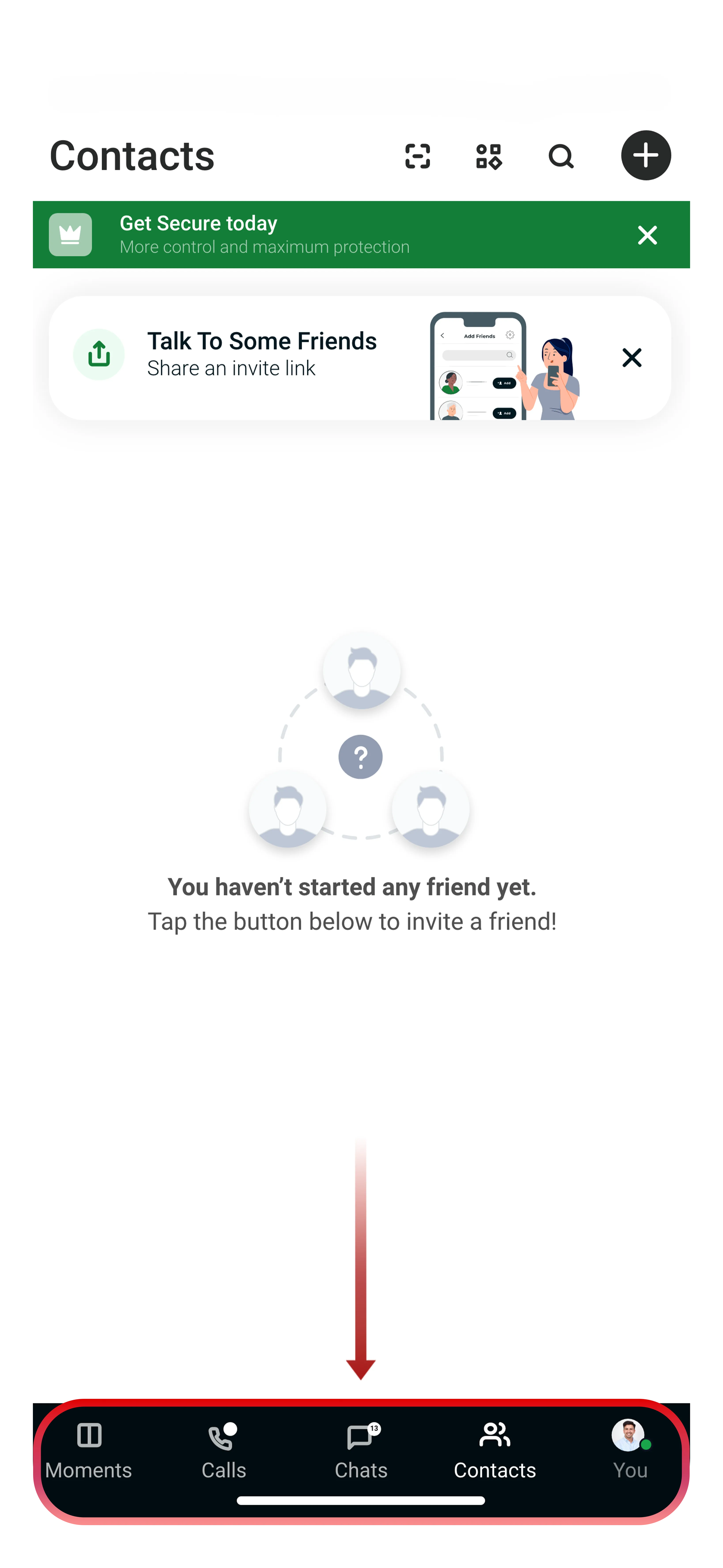
The bottom navigation bar is your primary way to move between Tr3sPass features. It contains five tabs:
| Tab | Function |
|---|---|
| Moments | Stories and status updates |
| Calls | Voice and video call history |
| Chats | All your conversations, organized by zone |
| Contacts | Contact list and search |
| You | Profile, zone switcher, ZTRS, and account settings |
The currently active tab is highlighted. Unread message counts appear as badges on the Chats tab.
Chats Screen
The Chats screen is where you land when you open Tr3sPass. It shows all conversations for your currently active zone.
What you see:
- Contact name and profile picture
- Last message preview
- Timestamp of last activity
- ZTRS trust indicator (color-coded dot)
- Unread message count badge
- Zone indicator showing which zone the conversation belongs to
Actions from the Chats screen:
- Tap a conversation to open it
- Swipe left on a conversation for quick actions (archive, delete, pin)
- Long press to select multiple conversations
- Tap the search icon to search across all messages
- Tap the compose icon to start a new conversation
Search
Tap the magnifying glass icon at the top of the Chats screen to search.
You can search for:
- Contact names
- Message content
- Phone numbers
- Shared files and media
Search results are scoped to your currently active zone. Switch zones to search conversations in other zones.
Calls Screen
The Calls screen shows your complete call history for the active zone.
Each entry shows:
- Contact name and photo
- Call type (voice or video, incoming or outgoing)
- Call duration
- Date and time
- ZTRS trust indicator
Actions:
- Tap a contact to call them again
- Tap the info icon to view call details
- Tap the phone icon (top right) to start a new call
- Swipe left on an entry to delete it from history
Zone Switcher
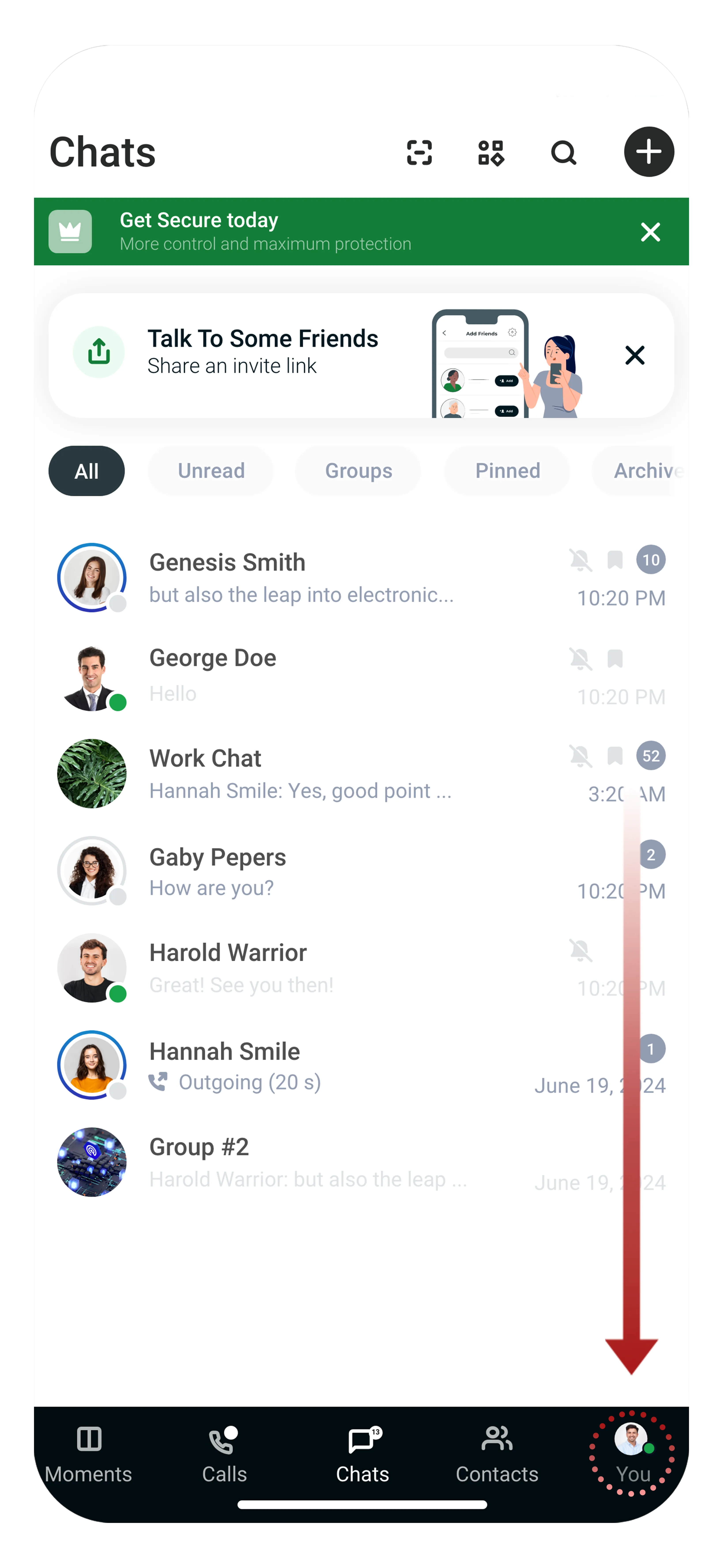
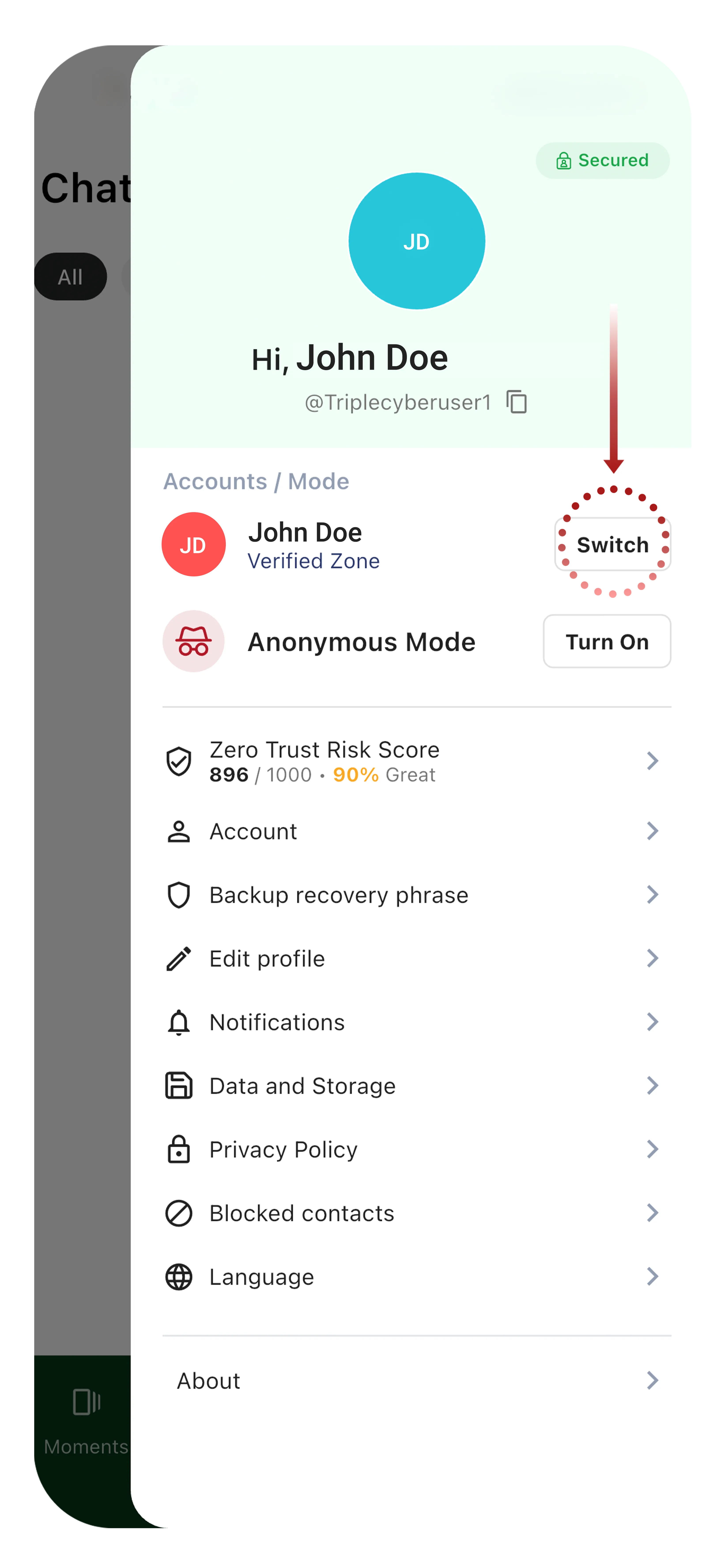
The zone switcher is accessed from the You tab. It is the core of Tr3sPass's three-zone security model.
How to switch zones:
- Tap the You tab in the bottom navigation bar
- In the Accounts / Mode section, tap Switch next to the zone you want to activate, or tap Turn On for Anonymous Mode
- The app switches to that zone's conversations, contacts, and settings
Zone indicators:
- Red ring — Anonymous zone active
- Blue ring — Verified zone active
- Green ring — Secure zone active
Each zone operates independently. Your conversations, contacts, and privacy settings are separate per zone. Switching zones does not affect the other zones.
Why use multiple zones?
- Use Anonymous for casual or private conversations where you don't want to share your identity
- Use Verified for professional contacts and everyday trusted communication
- Use Secure for sensitive discussions requiring maximum identity assurance
Chat Interface
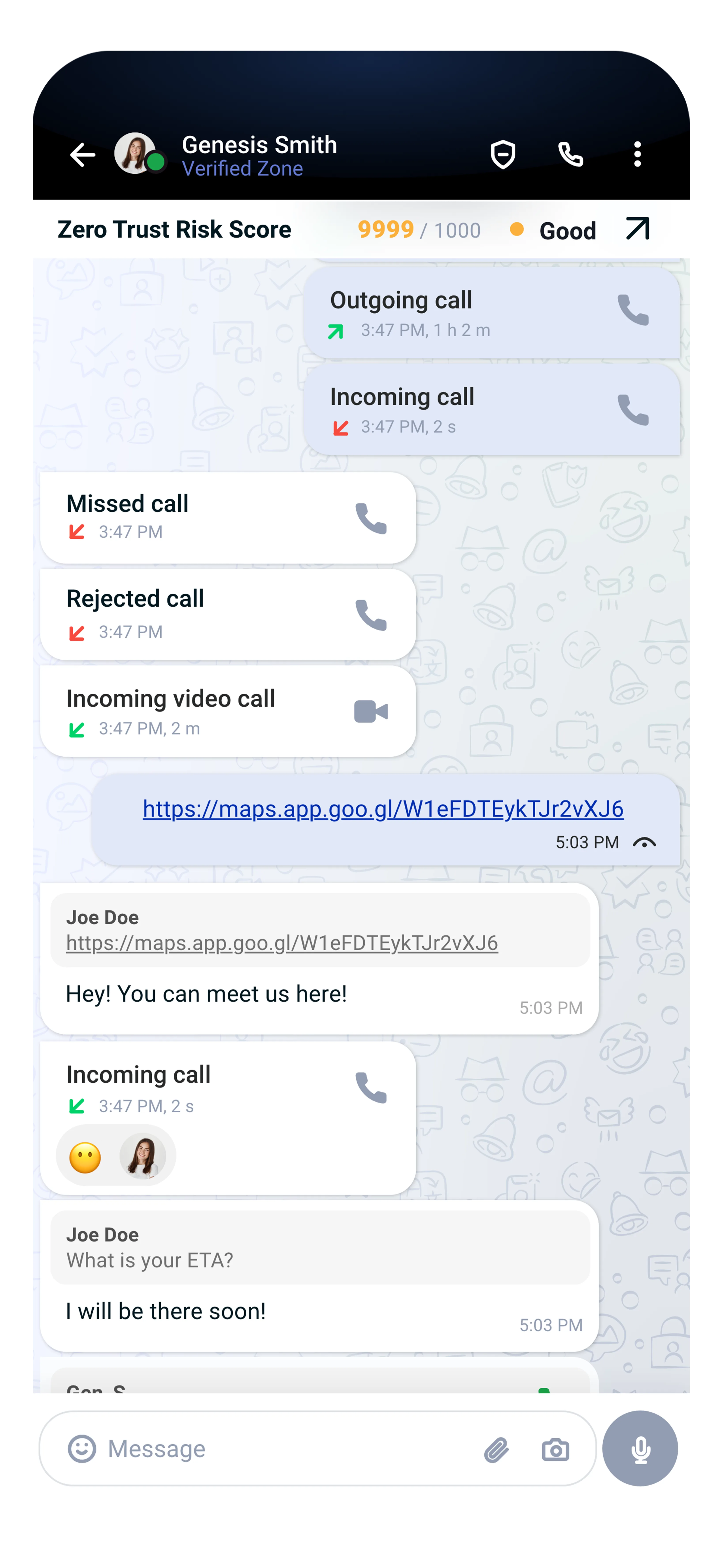
When you open a conversation, you see:
Top bar:
- Back arrow to return to Chats list
- Contact name with zone label and profile photo
- Screen share and phone call icons
- More options menu (three dots)
- Below the top bar: Zero Trust Risk Score display with score number and rating
Message area:
- Your messages appear on the right (colored bubble)
- Their messages appear on the left (gray bubble)
- Timestamps shown between message groups
- Media (photos, videos, files) displayed inline
- Read receipts shown as eye indicators (if enabled)
Input bar (bottom):
- Emoji button
- Text input field
- Attachment button
- Camera button
- Voice message button (hold to record)
- The Send button appears when you begin typing
More Options Menu
Tap the three dots in the top-right corner of a conversation to access:
- View contact profile — See full ZTRS breakdown and zone level
- Search in conversation — Find specific messages
- Mute notifications — Silence alerts for this chat
- Media, links, and docs — Browse all shared files
- Wallpaper — Customize the chat background
- Clear chat — Delete message history
- Report — Flag suspicious behavior
Contact Profile
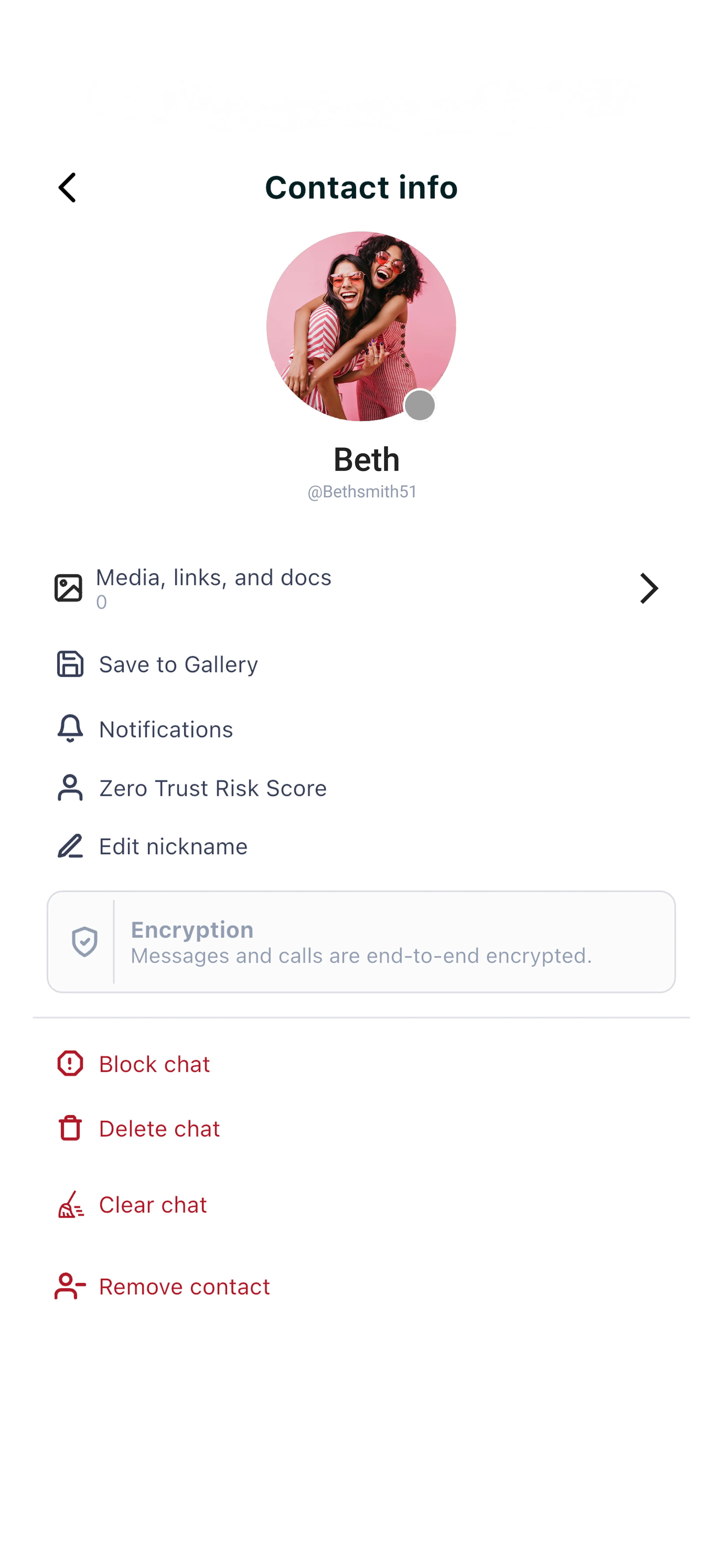
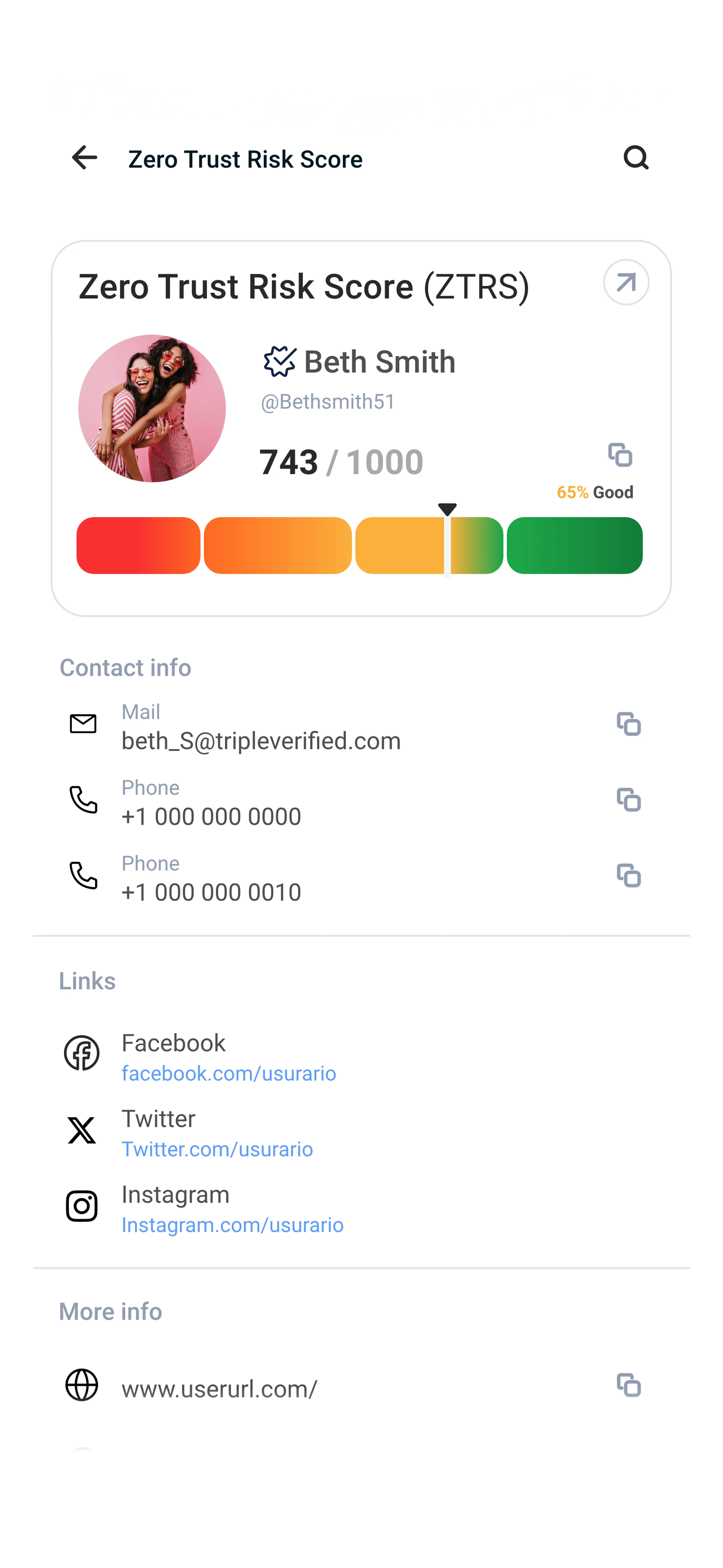
Tap a contact's name or photo at the top of a conversation to view their profile.
Profile shows:
- Display name and username
- Profile photo with status indicator
- Media, links, and docs count
- Save to Gallery
- Notifications settings
- Zero Trust Risk Score (tap to view detail)
- Edit nickname
- Encryption status
- Contact management (Block, Delete, Clear, Remove)
Moments Screen
The Moments screen displays ephemeral content from your contacts. Share photos, videos, and text updates with full control over audience, duration, and privacy.
- View contacts' Moments organized by Recent, Seen, and Muted
- Create and share your own Moments with custom audience groups
- React and reply to Moments privately
- Set custom durations from 6 hours to 7 days
- Full screenshot detection and privacy controls
For a complete guide, see Moments.
You Screen
Tap You in the bottom navigation bar to access your profile and app preferences. The menu is organized into sections:
- Account — Profile, zone management, linked devices
- Privacy — Visibility controls, blocked contacts, read receipts
- Notifications — Message alerts, call alerts, sound preferences
- Appearance — Theme (dark/light), chat wallpaper, font size
- Language — App language (English, Spanish, French, Portuguese)
- Storage & Data — Media auto-download, storage usage, clear cache
- Help — FAQ, contact support, app info
- About — Version number, terms of service, privacy policy
For detailed settings information, see the Settings & Navigation and Privacy Settings articles.
Quick Navigation Tips
- Double-tap the Chats tab to scroll to the top of your conversation list
- Swipe right on a conversation to pin it to the top of your list
- Tap the You tab to quickly access zone switching and profile settings
- Use the search bar to quickly find any contact or message across your active zone
Accessibility
- Screen reader support — All navigation elements are properly labeled
- Large text mode — Adjustable in You → Appearance → Font Size
- High contrast — Available in You → Appearance → Theme
- Keyboard navigation — Full support on tablet and desktop versions
Getting Help
If you need assistance navigating Tr3sPass:
- In-app help: You → About
- Help Center: Visit our help site at triplecyber.com/help/tr3spass
- Support: Contact support@triplecyber.com
Next Steps
- Settings & Navigation - Customize your experience
- Privacy Settings - Control your security preferences