Moments is the ephemeral content sharing feature built into Tr3sPass. Share photos, videos, and text updates with your contacts, with full control over who sees them and how long they last. Every Moment is end-to-end encrypted by default and protected by TripleEnablement identity verification.
Unlike stories on other platforms, Moments puts privacy first. You decide the audience, the duration, and whether your content can be saved. No algorithms, no public feeds, no data harvesting.
Why Moments?
Most social features sacrifice privacy for engagement. Moments flips that model:
| Traditional Stories | Tr3sPass Moments |
|---|---|
| Visible to all followers by default | You choose every viewer |
| Fixed 24-hour duration | Custom duration: 6h to 48h+ |
| Platform stores content indefinitely | End-to-end encrypted, deleted after expiry |
| No control over screenshots | Screenshot and screen recording detection |
| Algorithm-driven visibility | No algorithm, no ranking, no manipulation |
| Trust is assumed | Zero Trust verified recipients |
Creating a Moment
Moments let you share photos, videos, and updates that are visible to your contacts for 24 hours.
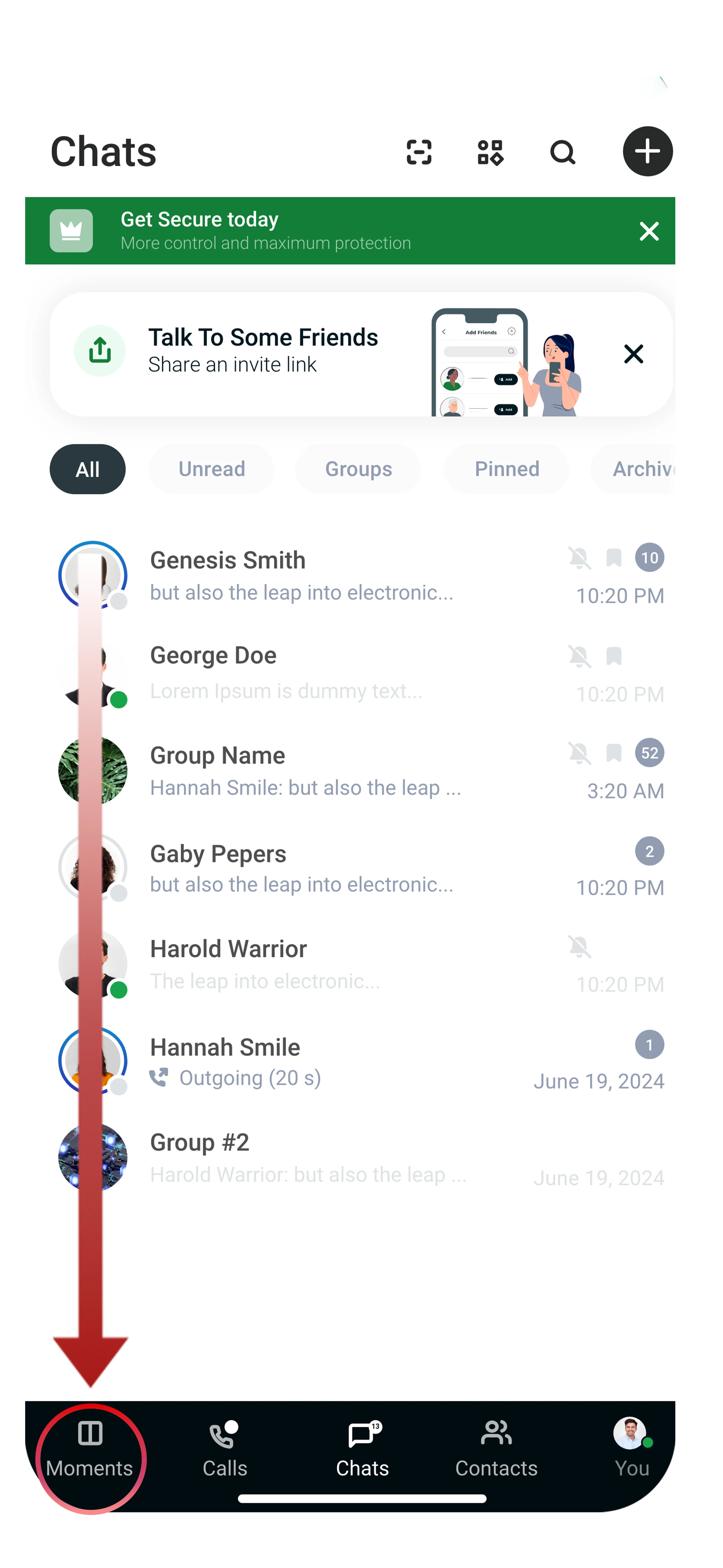
Step 1: Open Moments
Tap the Moments icon in the Tr3sPass navigation bar. This opens your Moments feed, showing active Moments from your contacts and a + button to create a new one.
Step 2: Add Content
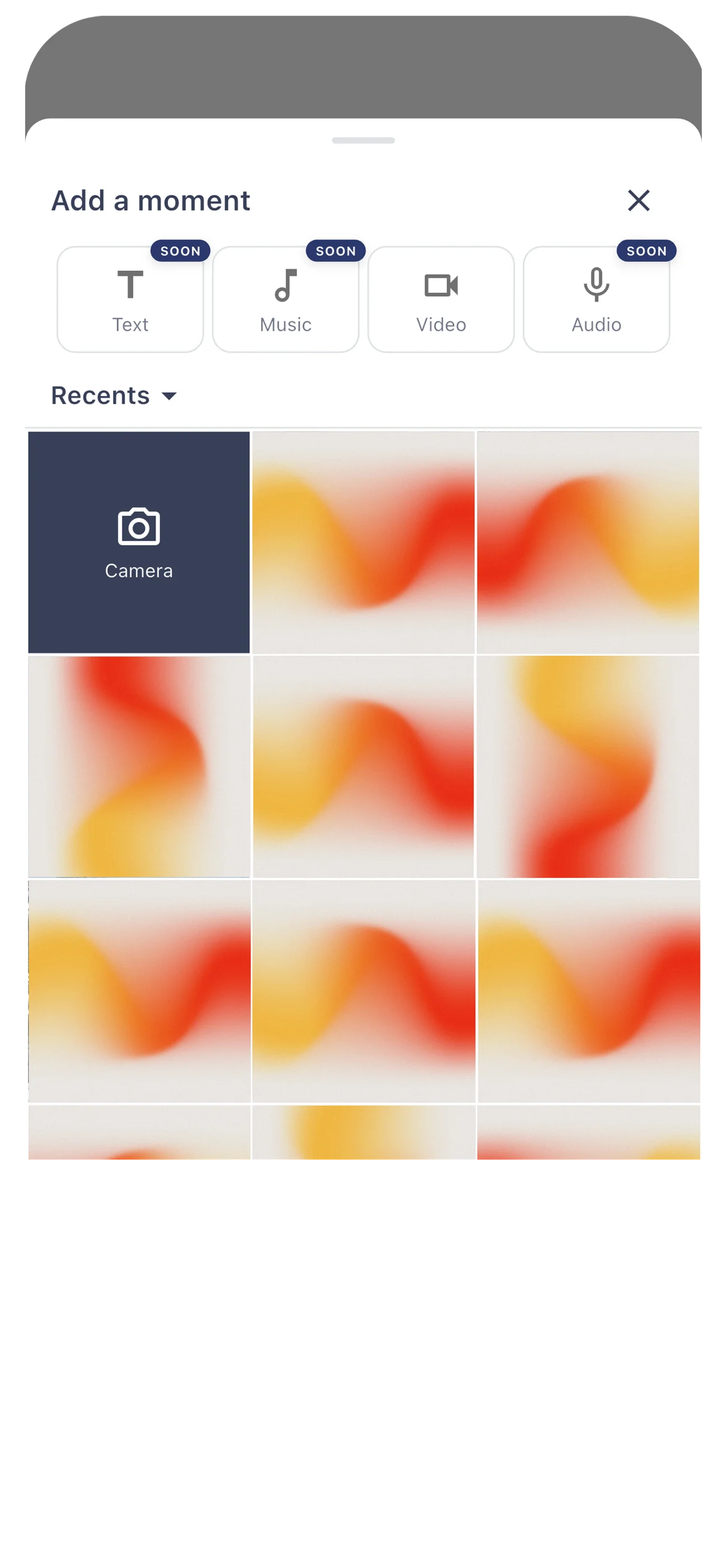
Tap + to open the content picker. Choose from the available content types:
Photos
- Select from your gallery or take a new photo
- Multiple photos can be combined into a single Moment (carousel format)
- Edit tools: crop, rotate, adjust brightness and contrast
- Draw or add text overlays directly on images
Video
- Record a new video or select from your gallery
- Maximum duration: 30 seconds per clip
- Trim and crop before sharing
- Add text overlays to video content
Text
- Create text-only Moments with customizable backgrounds
- Choose from solid colors, gradients, or themed backgrounds
- Adjust font size and alignment
Music
- Share music clips with your contacts
Audio
- Record and share voice-based Moments
Step 3: Edit and Add Details
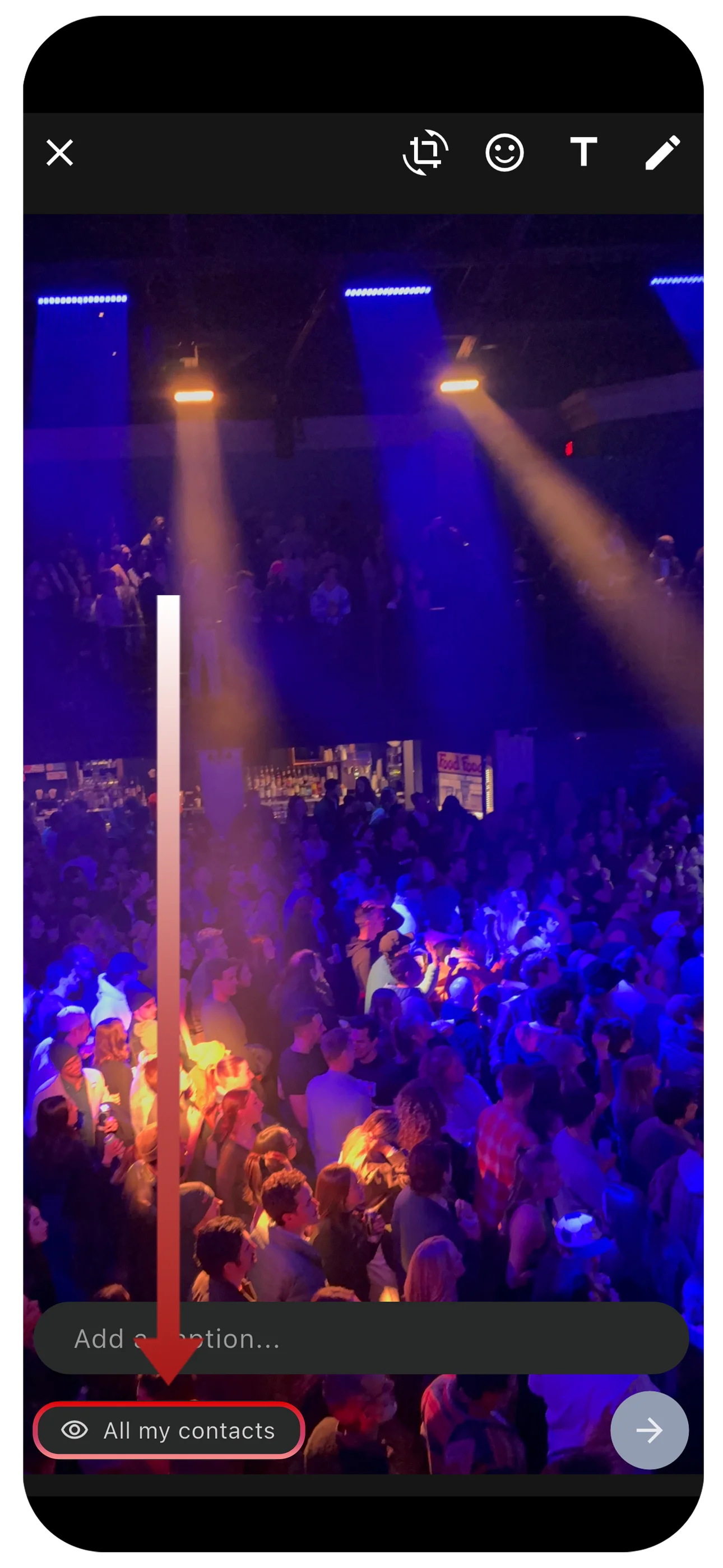
Before sharing, you can enhance your Moment using the editing tools at the top of the screen:
Editing Tools
- Crop: Resize and reframe your photo or video
- Emoji: Add emoji stickers anywhere on your content
- Text (T): Add text overlays with customizable size and placement
- Draw: Freehand drawing directly on your content
Captions
- Tap the "Add a caption..." field at the bottom of the screen
- Captions appear below your media content when viewers see your Moment
- Captions support the same formatting as chat messages (bold, italic, strikethrough)
Step 4: Set Your Audience
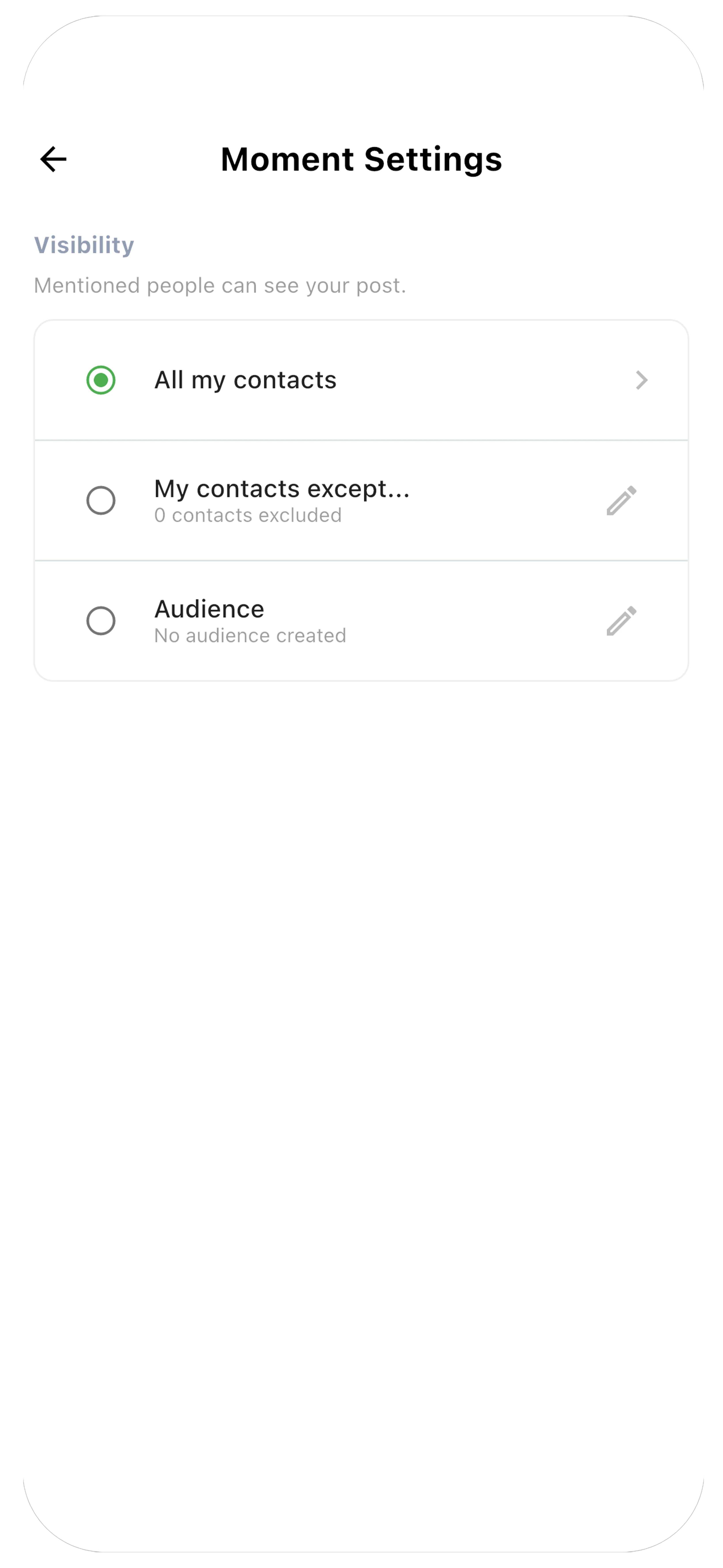
This is where Moments differs from every other platform. You have full control over who sees your content. Tap the visibility button (shown as "All my contacts" in Step 3) to open Moment Settings.
All my contacts
- The default option. All of your Tr3sPass contacts can view the Moment.
- Still limited to your contacts only (never public)
My contacts except...
- Start with all contacts and exclude specific people
- Tap the edit icon to select contacts to exclude
- Useful when you want broad sharing but need to hide from certain people
Audience
- Create custom audience groups for targeted sharing (see Audience Groups below)
- One tap to share with "Close Friends", "Work Team", or any custom group
- Groups can be edited at any time without affecting active Moments
Step 5: Set Duration
Choose how long your Moment stays visible after posting:
| Duration | Best For |
|---|---|
| 6 hours | Quick updates, time-sensitive content |
| 12 hours | Half-day visibility, morning or evening posts |
| 24 hours | Standard story-length sharing |
| 48 hours | Weekend events, multi-day updates |
| Custom | Set any duration from 1 hour to 7 days |
After the duration expires, the Moment is permanently deleted from all devices. No server copy is retained.
Step 6: Share or Schedule
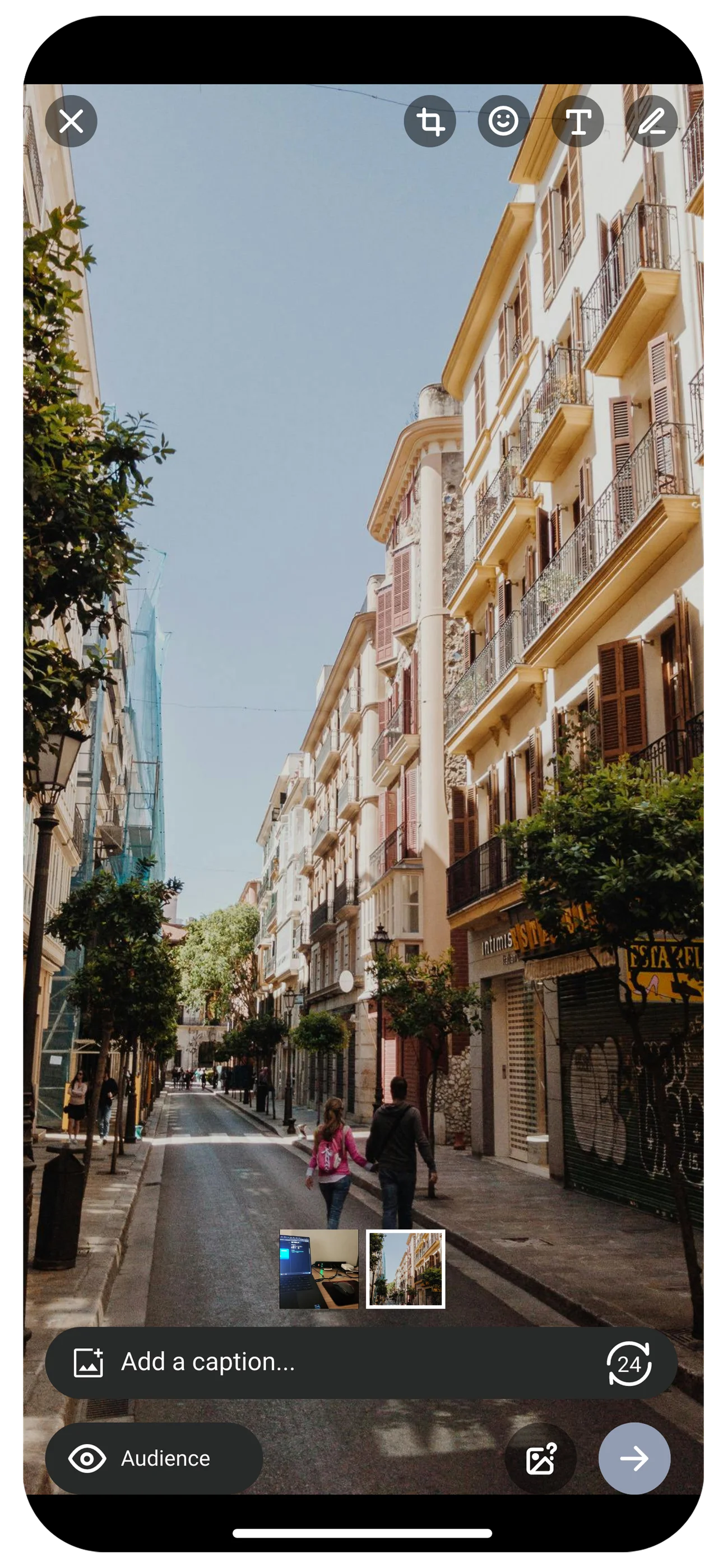
Share Now
- Tap Share to publish immediately
- Your Moment appears in your contacts' feeds within seconds
Schedule for Later
- Tap Schedule instead of Share
- Pick a date and time for automatic publishing
- Scheduled Moments appear in your drafts until they go live
- You can edit or cancel a scheduled Moment at any time before it publishes
Viewing Moments
Access and browse all available Moments from your contacts.
Your Feed
The Moments feed organizes contacts into three sections:
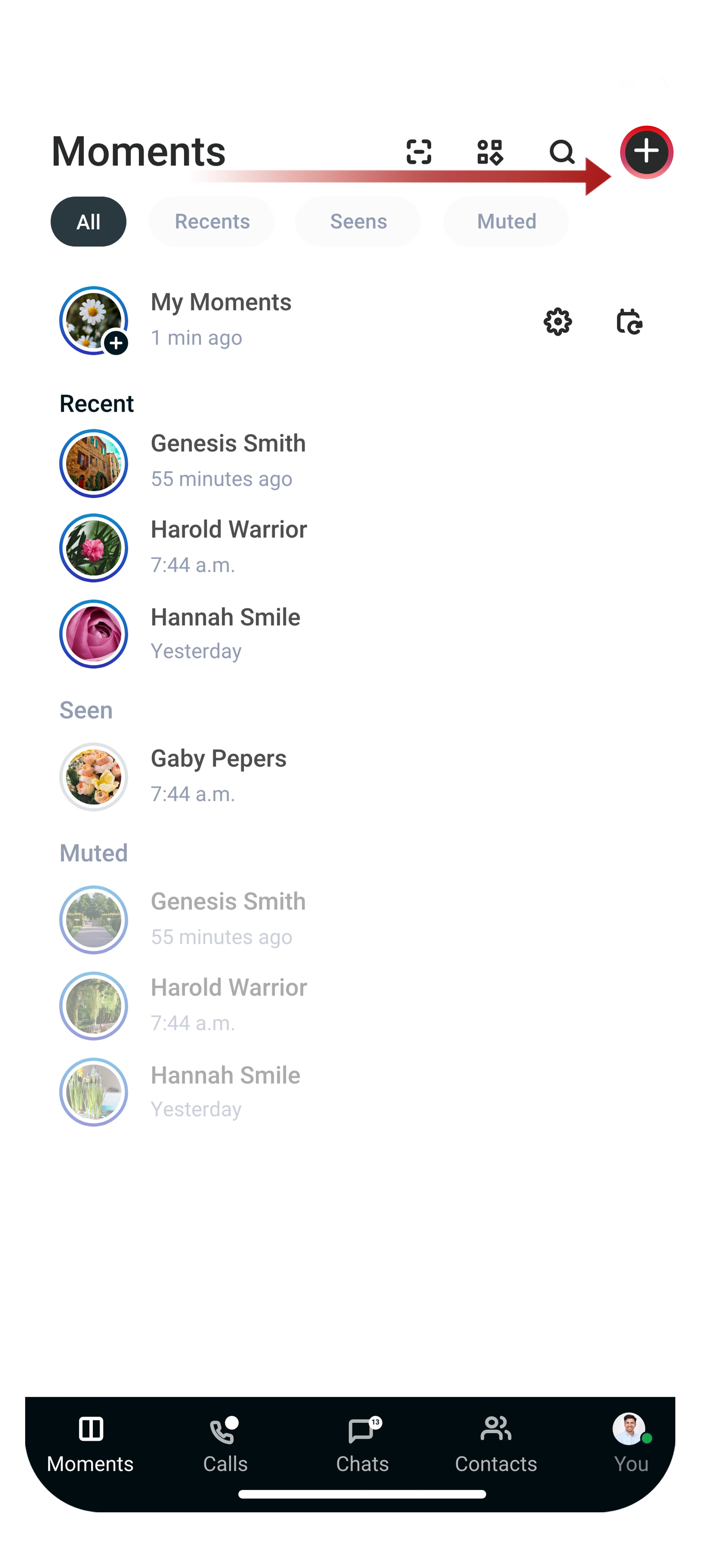
- My Moments: Your own active Moments appear at the top, with a + badge to create a new one
- Recent: Contacts with Moments you have not yet viewed, shown with a blue ring around their avatar
- Seen: Contacts whose Moments you have already viewed
- Muted: Contacts whose Moments you have muted (grayed out)
Use the filter tabs at the top (All, Recents, Seens, Muted) to narrow the list. Tap any contact to view their Moments in sequence.
Navigation Controls
While viewing a Moment:
- Tap right side: Next Moment
- Tap left side: Previous Moment
- Swipe left: Skip to next contact's Moments
- Swipe right: Go back to previous contact's Moments
- Tap and hold: Pause the auto-advance timer
- Swipe down: Close and return to the feed
Reacting to Moments
You can respond to Moments without leaving the viewer:
Quick Reactions
- Swipe up on a Moment to reveal emoji reactions
- Your reaction is sent as a direct message to the creator
- Reactions are private (only the creator sees them)
Reply
- Tap the text field at the bottom to type a reply
- Your reply is sent as a direct message in your conversation with the creator
- Replies reference the specific Moment so the creator knows what you are responding to
Audience Groups
Audience Groups let you save lists of contacts for quick, repeated sharing. Instead of selecting contacts one by one every time, create a group once and reuse it.
Creating a Group
- Go to Moments Settings (gear icon in the Moments feed)
- Tap Audience Groups
- Tap Create New Group
- Name your group (e.g., "Close Friends", "Family", "Work Team")
- Select contacts to include
- Tap Save
Managing Groups
- Edit: Add or remove contacts from any group at any time
- Delete: Remove a group entirely (does not affect contacts or past Moments)
- Rename: Change the group name without modifying the member list
- Reorder: Drag groups to change their display order in the audience picker
How Groups Work with Active Moments
- If you add someone to a group while you have active Moments shared with that group, the new member will not see your already-posted Moments
- If you remove someone from a group, they will immediately lose access to any active Moments shared with that group
- Changes to groups only affect future Moments unless a removal triggers access revocation
View Counts and Analytics
Every Moment you post comes with detailed view analytics.
Viewing Your Stats
Swipe up on your own active Moment to see:
- Total view count: How many contacts have seen this Moment
- Viewer list: Names of each person who viewed, in chronological order
- View timestamps: Exact time each person viewed
- Reaction summary: All emoji reactions received
- Reply count: Number of direct message replies
What Viewers See
- Viewers cannot see who else has viewed a Moment
- Viewers cannot see the total view count
- Only the Moment creator has access to analytics
Archive
Save your favorite Moments before they expire. Archived Moments are stored locally on your device in an encrypted vault.
Saving to Archive
- While viewing your own active Moment, tap the Archive icon (bookmark)
- The Moment is saved to your private archive immediately
- You can archive at any time before expiry
Browsing Your Archive
- Open the Moments feed
- Tap the Archive icon in the top navigation
- Browse by date using the calendar view or scroll through the grid
Calendar View
The archive includes a calendar view for browsing your Moment history:
- Month view: See which days had archived Moments (marked with dots)
- Tap a day: View all Moments archived on that date
- Swipe between months: Navigate through your history
Archive Privacy
- Your archive is stored locally only, never uploaded to any server
- Archived Moments are encrypted with your device key
- If you uninstall Tr3sPass, your archive is permanently deleted unless you have a backup
- Archive contents are never included in Tr3sPass backups to cloud services
Privacy and Security
Moments inherits all of the privacy protections built into Tr3sPass, plus additional controls specific to ephemeral content.
End-to-End Encryption
Every Moment is encrypted before it leaves your device. The encryption keys are shared only with your chosen audience. TripleCyber cannot see, read, or access your Moments at any point.
Screenshot and Screen Recording Detection
Tr3sPass monitors for screenshot and screen recording attempts while someone is viewing your Moment:
- Screenshot detected: You receive an immediate notification identifying who took the screenshot
- Screen recording detected: You receive a notification if a viewer has screen recording active
- Deterrent, not prevention: The system notifies you but cannot technically prevent all capture methods on all devices
Zero Trust Verification
Moments integrates with the TripleEnablement trust framework:
- Trust score gating: You can set a minimum trust score required to view your Moments
- Identity verification: Viewers must have a verified identity through TripleEnablement
- Anonymous contacts blocked: Contacts in the Anonymous trust zone cannot view Moments by default (configurable)
- Verified badge: Moments from verified contacts display the TripleEnablement badge
Content Expiry
When a Moment expires:
- The Moment is removed from all viewer devices
- The encryption keys are rotated and the old keys are destroyed
- No server-side copy exists to delete (content is end-to-end encrypted, server only stores encrypted blobs)
- The only surviving copy is in your local archive (if you archived it)
Data Deletion
If you delete a Moment before it expires:
- Immediate removal from the feed for all viewers
- Viewer devices delete the local cache on next sync
- Your view analytics for that Moment are also deleted
- Deletion is permanent and cannot be undone
Moments Settings
Access Moments-specific settings from the gear icon in the Moments feed.
Who Can View My Moments
- All Contacts: Default. Any contact can view unless you set a specific audience per Moment.
- Custom Default Audience: Set a default audience group that applies to all new Moments unless overridden.
Notification Preferences
- New Moment alerts: Get notified when contacts post new Moments
- Reaction notifications: Get notified when someone reacts to your Moment
- Reply notifications: Get notified when someone replies to your Moment
- Screenshot alerts: Always on (cannot be disabled for security)
Default Duration
Set your preferred default duration for new Moments. You can still override per Moment.
Auto-Archive
Enable automatic archiving to save every Moment you post to your local archive without manual action.
Tips and Best Practices
For Personal Use
- Create a "Close Friends" audience group for personal content
- Use the 6-hour duration for quick updates that do not need to persist
- Enable auto-archive if you want to keep a personal record
For Business or Teams
- Create team-specific audience groups for work updates
- Use scheduling to post during business hours even if you create content after hours
- Use the 48-hour duration for important announcements so team members across time zones have time to view
Privacy Best Practices
- Review your audience groups periodically and remove contacts who are no longer relevant
- Use the exclude feature rather than sharing broadly
- Check your view analytics to understand who engages with your content
- Remember that screenshot detection notifies you but cannot prevent all capture methods
Frequently Asked Questions
Can I edit a Moment after posting? No. Once a Moment is shared, it cannot be edited. You can delete it and create a new one.
Can I see who took a screenshot? Yes. Tr3sPass sends you a notification with the name of the contact who captured your Moment.
What happens if I block someone who viewed my Moment? The blocked contact immediately loses access to all your active Moments. Their view is revoked.
Can I share a Moment to my Moment feed from a chat? Not directly. You can save media from a chat to your device and then create a new Moment with it.
Is there a limit to how many Moments I can post? No limit on the number of active Moments at any time.
Do Moments use more data than regular messages? Moments use approximately the same amount of data as sending the equivalent media in a chat message. The encryption overhead is minimal.
Can I view Moments on desktop? Moments is currently available on iOS and Android only. Desktop support is planned for a future release.
Related
- Chat Features - Messaging, media sharing, and the eye indicator system
- Privacy Settings - Control your visibility and discoverability
- Contact Profiles & ZTRS - Understand trust scores for your contacts
- What is Tr3sPass? - Overview of the platform and its security model