What Are Validation Requests?
Validation requests are identity verification inquiries sent by other users through TripleValidate. They're asking you to confirm:
- Asset Ownership: "Is this email address yours?"
- Identity Verification: "Are you the real [Your Name]?"
- Account Confirmation: "Do you own this social media account?"
Why This Matters:
Validation requests help prevent:
- Phishing attacks using fake email addresses
- Impersonation attempts
- Fraudulent communications
- Identity theft
Common Scenario:
Someone receives an email claiming to be from you and wants to verify it's legitimate before responding or taking action (like sending money or sharing sensitive information).
Where to Find Validation Requests
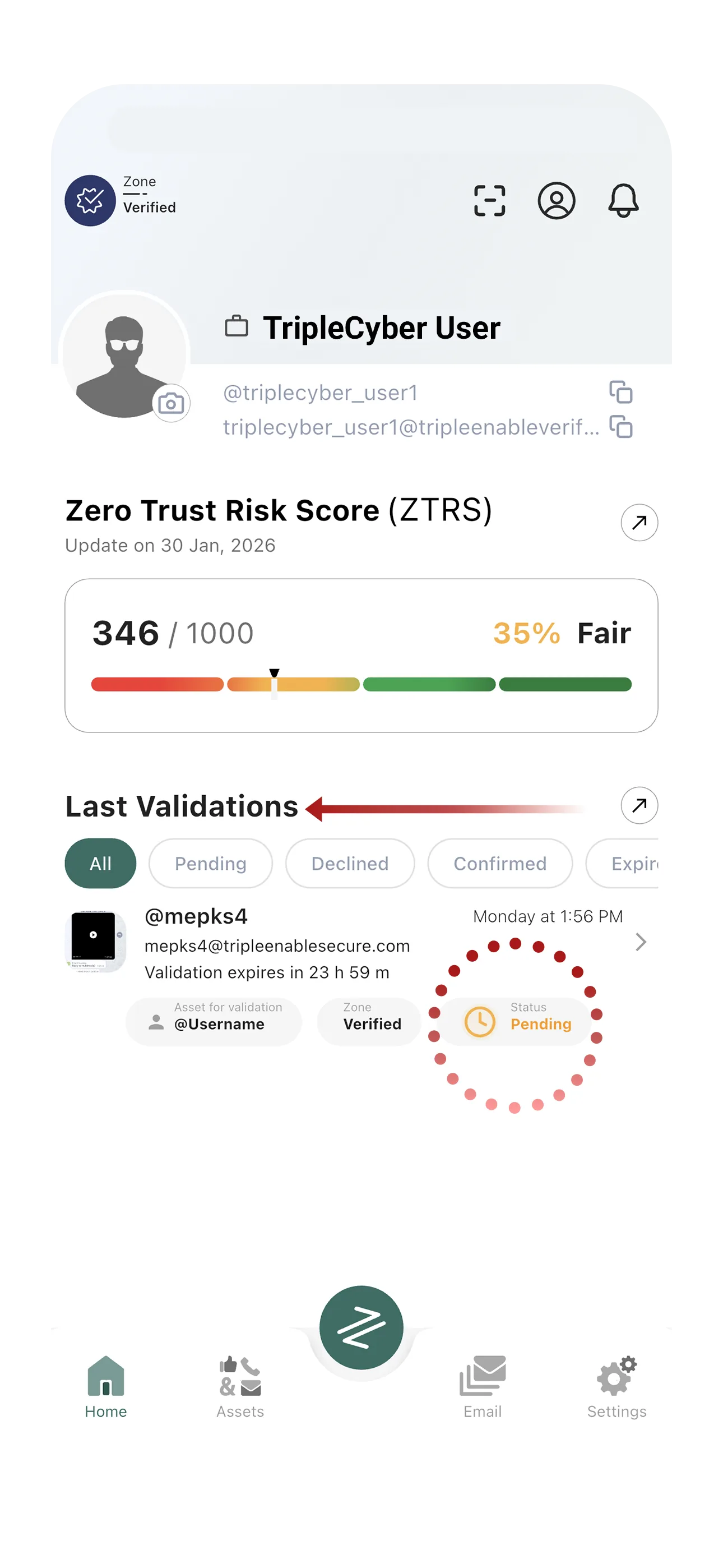
Method 1: TripleEnable Home Screen
- Open TripleEnable app
- Go to Home tab (usually the first icon)
- Scroll to "Last Validations" section
- See all pending, recent, and past requests
Method 2: Push Notifications
When you receive a new validation request:
- You'll get a push notification on your device
- Tap the notification to go directly to the request
- Review and respond immediately
Make sure notifications are enabled:
- Go to TripleEnable Settings
- Enable Push Notifications
- Enable Validation Request Alerts
Method 3: Email Notification
You'll also receive an email at your TripleEnable email address:
- Subject: "New Validation Request"
- Contains details about who sent the request
- Includes a link to respond
Understanding Validation Requests
Each validation request shows:
Requester Information:
- Username of person requesting validation
- Their ZTRS score (if visible)
- Their zone level (Verified or Secure)
Request Details:
- Which asset they're asking about
- Custom message from the requester
- Timestamp of when request was sent
- Time remaining before expiration (24 hours)
Example Request:
From: john_business (ZTRS: 850, Secure Zone)
Asset: yourname@gmail.com
Message: "Hi, I received an email from this address asking me to wire transfer $5,000. Can you confirm this is your email address?"
Expires in: 18 hours
How to Respond to Validation Requests
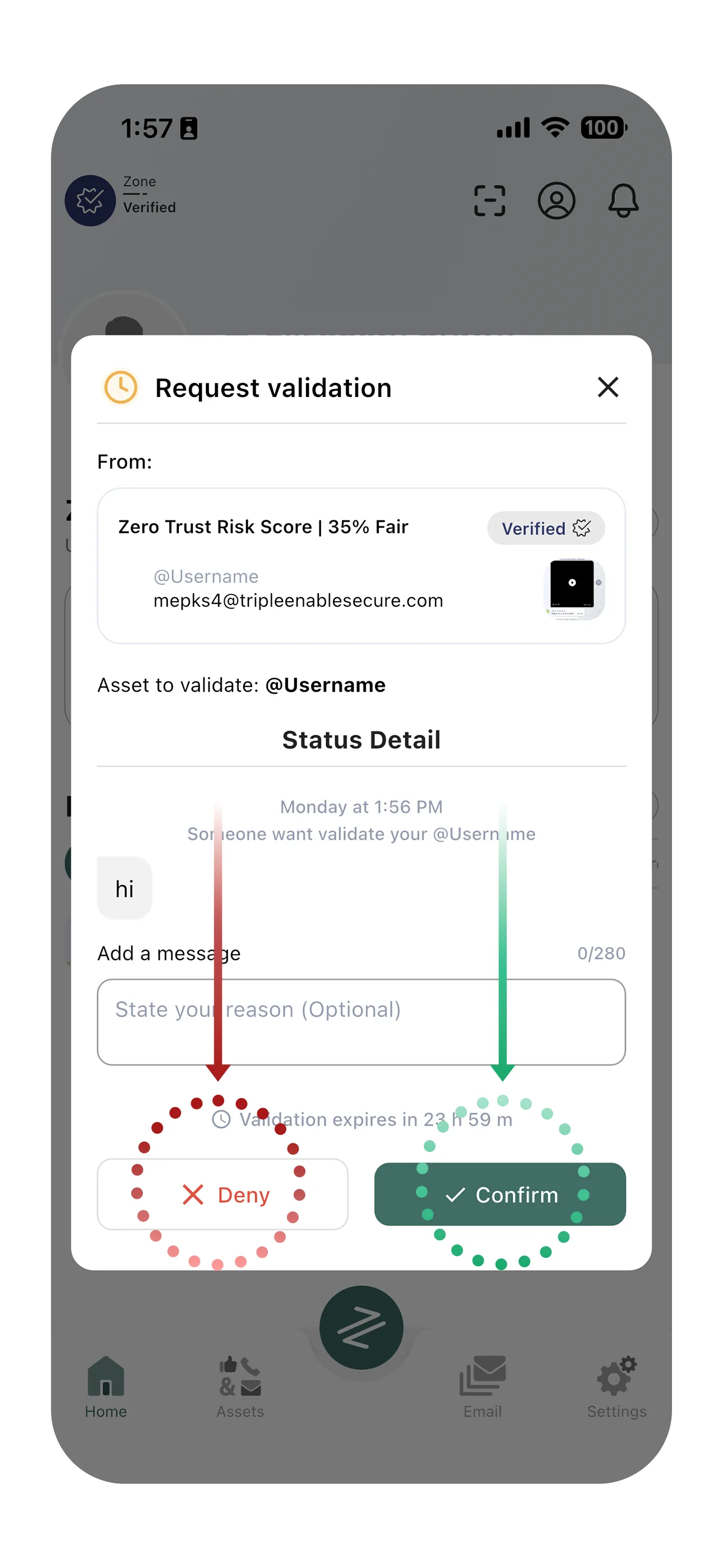
Option 1: Confirm
When to Confirm:
- The asset DOES belong to you
- You recognize the communication they're referencing
- You want to confirm your identity to this person
How to Confirm:
- Tap on the validation request
- Review the details carefully
- Tap "Confirm"
- Confirmation sent immediately
What Happens:
- Requester receives instant confirmation
- Your ZTRS credibility increases
- Trust is established for future communications
Option 2: Deny
When to Deny:
- The asset does NOT belong to you
- You recognize this as a potential scam
- The communication referenced was NOT from you
- You don't want to confirm identity to this person
How to Deny:
- Tap on the validation request
- Review the details
- Tap "Deny"
- Optionally add a reason (recommended)
What Happens:
- Requester is notified you denied
- This alerts them the communication may be fraudulent
- Helps protect others from scams
Example Deny Scenario:
Request asks about yourname@gmail.com claiming you requested money. If you never sent that email, DENY immediately - this alerts the requester they're being targeted by a scammer.
Option 3: Ignore (Expire)
When to Ignore:
- You're unsure how to respond
- You don't recognize the request
- You're too busy to deal with it now
What Happens:
- Request automatically expires after 24 hours
- Requester sees "No Response" status
- No impact on your ZTRS score
Note: Ignoring requests is neutral, but responding (confirm or deny) helps build ecosystem trust.
Responding Options Table
| Action | When to Use | Impact on You | Requester Sees |
|---|---|---|---|
| Confirm | Asset is yours, you want to confirm | Builds trust, increases credibility | Confirmed |
| Deny | Asset is NOT yours, or you don't want to confirm | Protects against fraud | Denied |
| Ignore | Unsure, busy, or unrecognized request | Neutral, no impact | Expired (after 24h) |
Best Practices for Responding
1. Review Every Request Carefully
Check:
- Who is sending the request?
- What asset are they asking about?
- What's their message?
- Does this make sense?
2. Respond Quickly to Legitimate Requests
- Genuine requests from real people deserve timely responses
- Quick approvals build trust in the ecosystem
- Helps others avoid fraud faster
3. Always Deny Fraudulent Requests
If someone asks about:
- An email you didn't send
- A message you didn't write
- An account you don't own
DENY immediately - this protects the requester and the community.
4. Add Context to Denials
When denying, consider adding a message:
"I never sent any email asking for money. This is a scam."
This helps the requester understand they're being targeted.
5. Use Ignore Sparingly
- Don't ignore requests just because you're lazy
- Ignoring legitimate requests frustrates users
- Active participation makes the ecosystem stronger
Understanding Request Context
Why Are People Validating You?
Common Scenarios:
Business/Financial:
- Received wire transfer request
- Got invoice from your email
- Business deal confirmation needed
Personal:
- Unusual message from your account
- Friend wants to confirm it's really you
- Suspicious activity on social media
Security:
- Phishing attempt using your name
- Impersonation on social media
- Fake account claiming to be you
Privacy Considerations
Who Can Send You Validation Requests?
Verified and Secure Zone users can validate:
- Your public assets (if privacy allows)
- Assets you've added to TripleEnable
- Your username and account
Anonymous Zone users:
- Cannot send validation requests
- Cannot be validated by others
Controlling Validation Visibility
Privacy Settings affect validations:
- Go to Settings in TripleEnable or Helloii
- Select Privacy
- Set visibility:
- Everyone: Anyone can validate your assets
- Only My Contacts: Only people you know can validate
- Nobody: No validation requests allowed
Important: Setting privacy to "Nobody" means others can't verify you're legitimate, which may reduce trust.
Request History
Viewing Past Requests
- Go to TripleEnable Home
- Tap "Last Validations"
- View tabs:
- Pending: Awaiting your response
- Approved: Requests you confirmed
- Declined: Requests you denied
- Expired: Requests that timed out
Why Review History?
- Identify patterns of fraud attempts
- See who's validating you frequently
- Track your response behavior
- Report suspicious activity
Troubleshooting
Not Receiving Validation Requests:
- Check notification settings are enabled
- Verify privacy settings allow validations
- Ensure you're in Verified or Secure Zone
- Check spam in your TripleEnable email
Can't Respond to Request:
- Check if request has expired (24 hours)
- Ensure internet connection is active
- Try force-closing and reopening app
- Update to latest app version
Receiving Too Many Requests:
- Adjust privacy settings to "Only My Contacts"
- Report spam requests
- Consider if your assets are being targeted
Request from Unknown Person:
- Review their ZTRS score and zone
- Read their message carefully
- If suspicious, decline or ignore
- Report if clearly malicious
Security Tips
Red Flags in Validation Requests
-
Requesting validation of assets you never shared publicly
-
Urgent language or pressure tactics
-
Multiple requests from same person
-
Requests about sensitive assets (bank accounts, passwords)
-
Poor grammar or suspicious messaging
Protecting Yourself
-
Never share passwords or sensitive data through validation
-
Deny requests that feel suspicious
-
Report abusive or fraudulent requests
-
Keep your assets list current and accurate
-
Monitor your request history regularly
Reporting Issues
If you receive:
- Abusive validation requests
- Spam or harassment
- Attempts to gather personal information
- Fraudulent claims about your assets
Report them:
- Tap on the request
- Select "Report"
- Choose reason (spam, fraud, abuse, other)
- Submit report
TripleCyber reviews all reports and takes action against violators.
Next Steps
Now that you understand validation requests:
- Navigation & Settings - Customize your TripleEnable experience and privacy settings
- TripleValidate - Learn how to SEND validation requests to verify others
- Helloii - Use validated identities in secure messaging
