
How to read ZTRS scores and verify who you're talking to
Viewing a Contact Profile
How to access:
- Open a conversation with the contact
- Tap their name at the top of the chat
- View their full profile
Or:
- Go to your Contacts list
- Tap any contact's name
- View their profile
Profile Information
Each contact profile displays:
Name
The contact's display name
Username
Their unique Helloii identifier (e.g. @A.mattocks)
Status
Their custom status message
Profile Photo
Their chosen profile image (if set)
Media, links, and docs
Shared media and files from your conversations
Notifications
Notification settings for this contact
Zero Trust Risk Score
Tap to view their ZTRS detail page (explained below)
Edit nickname
Set a custom nickname for this contact
Encryption
View the encryption status of your conversation
Block / Delete / Clear / Remove
Contact management actions
Understanding Zero Trust Risk Score (ZTRS)
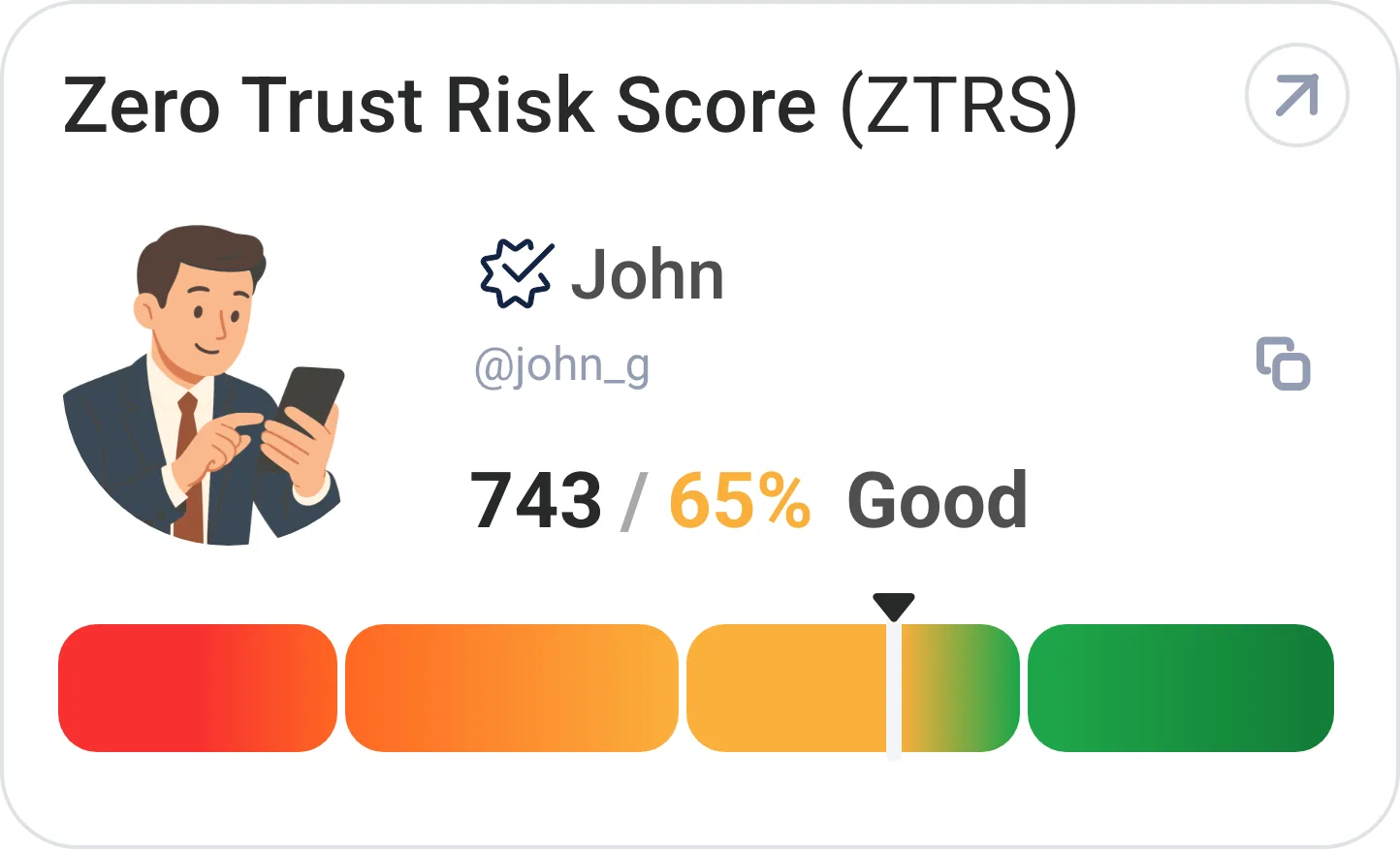
Your Zero Trust Risk Score is a real-time assessment of digital identity and trustworthiness — similar to a credit score, but for verifying who you're communicating with online.
What ZTRS Measures
ZTRS validates your entire digital profile across the TripleEnable ecosystem, including:
- Email addresses (verified and validated)
- Phone numbers (confirmed ownership)
- Social media accounts (Facebook, LinkedIn, and other platforms)
- Domain ownership (for business users)
- All other digital assets added to TripleEnable
How ZTRS is Calculated
Your ZTRS is evaluated continuously and recalculated monthly using TripleCyber's proprietary AI engine that assesses:
Location Patterns
Monitors geographic access points and detects anomalies. Consistent location patterns increase trust; unusual access attempts may lower scores.
Validation History
Analyzes authentication trends and consistency. Regular, successful validations build trust over time.
Security Factors
Evaluates encryption status, asset age, and dark web exposure. Older, verified assets with no breach history score higher.
Device Security and Digital Behavior
Analyzes patterns to provide real-time trust ratings. Consistent device usage and normal behavior patterns indicate trustworthiness.
Advanced Security Checks
The ZTRS system performs comprehensive security checks including:
- Phishing and spoofing detection
- Domain reputation monitoring
- Breach exposure analysis
- SIM-swap detection for phone numbers
- DKIM/DMARC validation for email security
Reading ZTRS in Contact Profiles
When viewing a contact's ZTRS, you'll see:
Overall Score
A confidence rating indicating overall trustworthiness
Trust Level
Their current trust level: Verified (base) or Secure (upgrade)
Contributing Factors
Granular breakdown of what contributes to their score — not just a yes/no "secure" label
Trust Signals
Live indicators of identity confidence displayed next to the contact
What the Trust Levels Tell You
Everyone in Helloii has one profile. When you sign up, you verify your identity through TripleEnable, so every user is at least Verified. From there, Secure is an optional upgrade of that same profile, much like adding a verified badge, that unlocks the highest trust level.
Verified Contacts
- Identity confirmed at signup through TripleEnable ID verification
- The base trust level every Helloii user has
- Good for professional networking and general communication
Secure Contacts
- Verified profile upgraded to the highest trust level
- Secure unlocks advanced capabilities on top of the Verified base
- Appropriate for sensitive business and financial discussions
One-Tap ZTRS View
View any contact's trust score instantly from their profile.
How to view:
- Open the contact's profile
- Tap Zero Trust Risk Score
- View their ZTRS breakdown immediately
What you see:
- Current trust level (Verified or Secure)
- ZTRS score with contributing factors
- Any flags or concerns
- Verification timestamps
Sending Validation Requests
For additional confirmation, you can request that a contact verify specific information.
How it works:
- Open the contact's profile
- Tap "Request Validation"
- They receive a notification in TripleEnable
- They approve or decline within 24 hours
- You receive confirmation of their response
Use cases:
- Confirming a new business contact's identity
- Verifying someone before sharing sensitive information
- Double-checking a contact who seems unusual
Building Your Own ZTRS
To maximize your own trust score:
- Upgrade to Secure — Upgrading your Verified profile to Secure unlocks the highest trust level and advanced capabilities
- Verify your digital assets — Add and verify email addresses, phone numbers, and social accounts in TripleEnable
- Maintain consistent behavior — Regular usage patterns and consistent device access build trust
- Keep assets current — Ensure verified information stays accurate and up-to-date
- Protect your accounts — Use strong passwords and enable all available security features
Next Steps
Now that you understand profiles and ZTRS:
- Messaging Features - Learn about voice calls, video calls, and groups
- What is TripleValidate - Deep dive into identity verification
- Managing Assets - Add digital assets to increase your ZTRS